Table of Contents
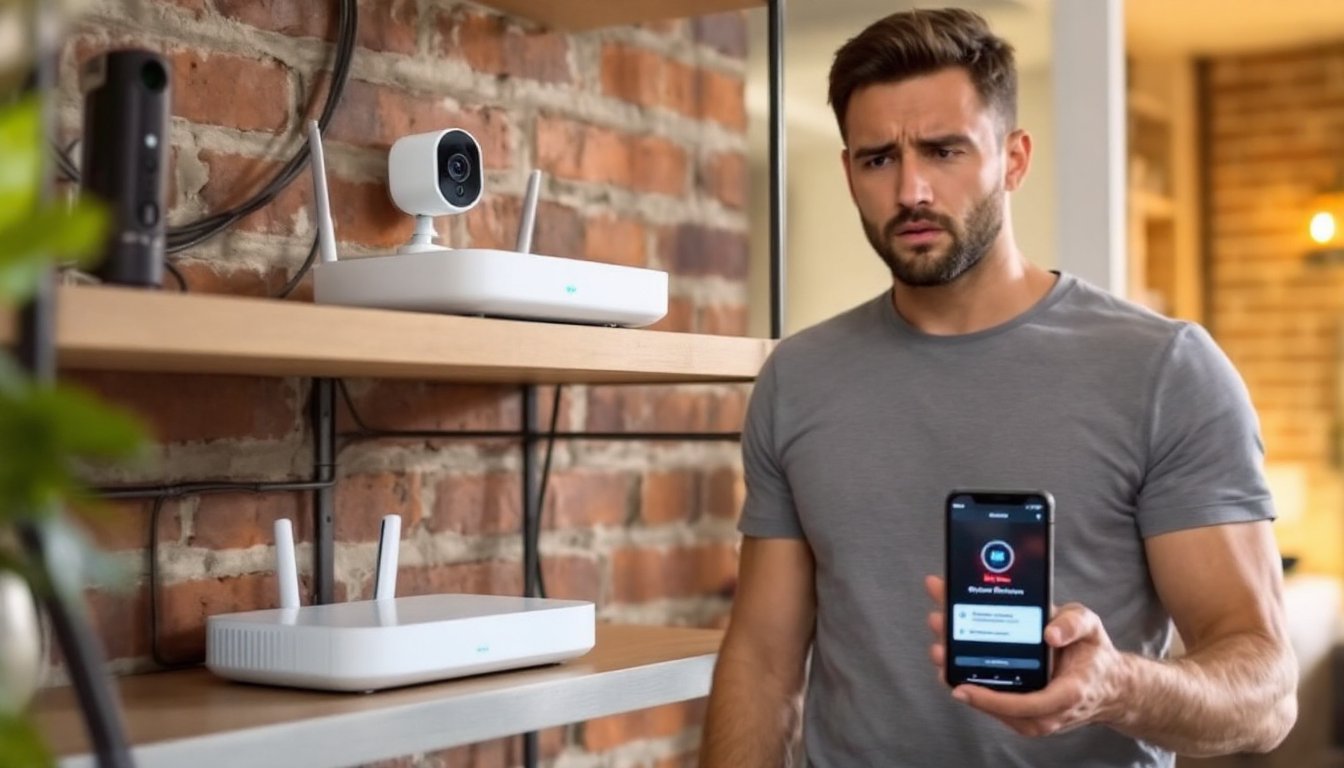
ToggleThere’s nothing worse than checking your home security setup and finding that your Wyze camera offline message staring back at you. One minute your footage is streaming smoothly, the next you’re locked out of your own security system. If you’re wondering why your Wyze camera keeps going offline or why is my Wyze camera offline in the first place, you’re not alone, this is one of the most common issues homeowners face with smart home devices. The good news? Most offline problems are fixable without calling in a technician. Whether it’s a connection hiccup, an outdated app, or your camera just needing a fresh start, we’ll walk you through each solution step-by-step so you can get back to monitoring your home with confidence.
Key Takeaways
- Verify your Wi-Fi connection is working on other devices and check that your Wyze camera is connected to the correct network and frequency band (most older Wyze models require 2.4GHz, not 5GHz).
- Restart your Wyze camera offline issue by unplugging it for 30 seconds, then restart your router by waiting a full minute before plugging it back in to clear temporary glitches.
- Check your camera’s signal strength in the Wyze app; weak signals (1 bar) require moving your router closer, relocating the camera, or switching to a less-crowded Wi-Fi channel.
- Update both your Wyze app and camera firmware regularly, as outdated versions lose compatibility with Wyze’s servers and are a leading cause of offline errors.
- Factory reset your camera as a last resort by unlinking it in the app and pressing the reset button for 10-15 seconds, then re-add it to your account as a new device.
Check Your Wi-Fi Connection First
Before troubleshooting the camera itself, verify that your Wi-Fi network is actually working. Walk over to your router and check that it has power and all lights are illuminated as normal. Open a web browser on your phone or laptop and load a website, if the internet works on other devices, your network is fine. If you don’t have internet at all, restart your modem and router: unplug both devices, wait 30 seconds, then plug the modem back in first, followed by the router. Let them fully boot (usually 2-3 minutes) before testing again.
Your Wyze camera needs to be on the same Wi-Fi network you set it up on, it won’t automatically switch networks. If you’ve recently changed your Wi-Fi password, the camera won’t recognize the old credentials. Check your phone’s Wi-Fi settings to confirm you’re on the correct network. Many homes with multiple access points or mesh systems accidentally have the camera on the 5GHz band when it should be on 2.4GHz (older Wyze models don’t support 5GHz). Most routers broadcast both frequencies from the same network name, so you may need to log into your router settings to specify which band the camera connects to, or temporarily disable 5GHz to force the device onto 2.4GHz.
Restart Your Wyze Camera and Router
A simple restart solves more problems than you’d expect. The first step is to unplug your Wyze camera from its power adapter and wait at least 30 seconds, this clears the device’s memory and forces it to reconnect fresh. Plug it back in and give it 2-3 minutes to boot completely (the LED indicator will change colors as it powers up). The camera is ready when the LED turns solid blue.
If the camera is still offline after restarting, restart your router as well. An overloaded or sluggish router can drop device connections, especially if you have many smart home devices competing for bandwidth. To restart your router properly, unplug the power cable, wait a full minute, then plug it back in. Don’t use the reset button on the back of the router unless you want to erase all its settings and start from scratch, that’s a last resort. Once your router is fully booted (all lights stable), check the Wyze app to see if your camera reconnects. This dual restart works because it clears any temporary glitches or memory leaks that develop over time.
Verify Your Network Signal Strength
Even if your Wi-Fi is technically on, weak signal strength causes intermittent disconnects. Wyze cameras need a reasonably strong signal to maintain a stable connection, they’re not as robust as larger mesh systems. Open the Wyze app and check the camera’s signal strength, shown as a Wi-Fi symbol. A full or mostly-full signal (3-4 bars) is ideal: if you see only 1 bar, the camera is struggling to maintain connection.
If signal is weak, move your router closer to where the camera is installed or relocate the camera closer to the router. Walls, metal objects, and water obstacles (like aquariums) weaken Wi-Fi signals significantly. Brick and concrete walls are especially problematic, if your camera is in a detached garage or basement, the signal may not reach reliably. Elevating your router (placing it on a shelf rather than the floor) often helps since Wi-Fi broadcasts better vertically. You can also check for Wi-Fi interference on your phone using apps that scan nearby networks: if your router shares the same channel as many neighbors’ networks, manually switch your router to a less-crowded channel (usually 1, 6, or 11 on 2.4GHz). Reducing interference and improving physical signal strength often resolves persistent offline issues that simple restarts can’t fix.
Update the Wyze App and Firmware
Check for App Updates
Keep your Wyze app up-to-date on your phone, as outdated versions can lose compatibility with Wyze’s servers and cause connection errors. Open your phone’s app store (Apple App Store for iPhone, Google Play Store for Android) and search for Wyze. If an “Update” button appears instead of “Open,” an update is available. Tap “Update” and let the installation finish completely, don’t close the app or turn off your phone during the process. Once updated, close the app entirely and reopen it. The updated app may fix backend communication issues that were causing your cameras to appear offline.
Update Camera Firmware
Wyze regularly releases firmware updates for its cameras that fix bugs and improve stability. Open the Wyze app, select your camera, and tap the settings icon (usually a gear). Look for a “Firmware” or “Device Info” option and check the current version. If an update is available, the app will prompt you to install it. Tap “Install” and keep your phone connected to Wi-Fi while the update downloads and installs, don’t disconnect the camera’s power during this process or the update may fail. The entire process typically takes 2-5 minutes. According to reviews from CNET, keeping your camera firmware current is one of the most overlooked but effective ways to prevent offline issues and improve performance. After the update completes, your camera should restart automatically and reconnect to your network.
Reset Your Wyze Camera
If you’ve tried all the above steps and your camera is still offline, a factory reset often resolves stubborn connection issues. Before resetting, understand that this erases all settings and you’ll need to set up the camera again from scratch as if it were brand new. Open the Wyze app one last time and unlink the camera from your account (look for a “Forget Device” or “Remove Camera” option in settings). Then physically reset the camera by locating the reset button on the bottom or back of the unit. Using a paperclip or a thin object, press and hold the reset button for 10-15 seconds until the LED blinks and changes colors. Release the button and wait for the LED to stabilize (usually turning to a fast yellow blink, indicating it’s ready to be set up).
Now re-add the camera to your Wyze app as if setting it up for the first time. Open the Wyze app, tap the “+” button to add a device, select your camera model, and follow the on-screen prompts. When asked to connect to Wi-Fi, make sure you select your network and enter the correct password. During setup, references from Digital Trends show that many users find success by keeping their phone within 6 feet of the camera during initial pairing, the setup process is sensitive to distance. Once reconnected and fully initialized, your camera should come back online with a fresh configuration. This nuclear option works because it eliminates any corrupted settings or authentication problems that accumulated over time.
If your camera remains offline even after a factory reset, you may have a hardware failure or a deeper network compatibility issue that requires contacting Wyze customer support or consulting product reviews on Tom’s Guide to see if others report similar issues with your specific camera model and router combination. Most people won’t need to go this far, but it’s good to know where to turn if these six fixes don’t work.